Marked / Guides / Duplicate photos
How to delete duplicate photos on iPhone
Your iPhone already finds exact duplicates for free. Open Photos, go to Collections, scroll to Utilities and tap Duplicates, then tap Merge on each set (or Select, pick several sets, and Merge them together). iOS keeps the best copy and moves the rest to Recently Deleted. What it won't catch are near-duplicates: the six almost-identical shots of one sunset. Those need a human eye.
Delete duplicates with the Photos app
Apple added duplicate detection in iOS 16, and it has quietly improved since. It costs nothing, it runs on the device, and for exact copies it is the right first stop.
- Open the Photos app and switch to Collections at the bottom.
- Scroll down to Utilities and open Duplicates. On older iOS versions, look in the Albums tab instead.
- Each row is one set: the copies iOS believes are the same image. Check the thumbnails before you trust it.
- Tap Merge next to a set and confirm in the dialog that pops up.
- For a big pile, tap Select, choose several sets, and tap Merge once for all of them.
Merge is smarter than delete. iOS keeps the highest-quality version and folds in useful details from the others, like captions, keywords and favorites, then sends the extras to the Recently Deleted album, where they wait 30 days.
Why the Duplicates album is missing
No Duplicates entry under Utilities usually means one of three boring things:
- iOS found nothing. The album only appears when at least one set exists.
- Analysis isn't finished. The Photos app scans in the background, mostly when the iPhone is locked and on a charger. After a restore, a new phone or a big import, give it a few nights plugged in.
- The iPhone runs something older than iOS 16. Check under Settings › General › About.
Where duplicates come from (so fewer show up)
Merging fixes today's pile. Knowing the sources keeps next month's smaller. Most copies on an iPhone arrive through a handful of routes:
- Chat apps saving everything. A photo someone sends you in a group chat often lands in your library once per app that auto-saves it. If WhatsApp is the culprit, turn off its Save to Photos setting.
- AirDropping to yourself. Sending a picture from your iPad to your iPhone when both already sync through iCloud Photos gives you a second copy.
- Re-importing old folders. Dragging the same "Phone backup 2021" folder into Photos twice, or importing from a camera card you already imported.
- Saving edits as new files. Some editing apps export a fresh image instead of editing in place, so the original and the edit sit side by side.
None of these are mistakes exactly. They are just the background noise of having a camera in your pocket, and it adds up quietly over a few years.
On a Mac or iPad
The iPad works exactly like the iPhone: same Collections tab, same Utilities section, same Merge button. On a Mac running macOS Ventura or later, the Photos app shows a Duplicates album in the sidebar under Utilities, and the bigger screen makes checking large sets more pleasant.
With iCloud Photos switched on, it doesn't matter where you merge. Clean up on the Mac with a coffee, and the iPhone follows a few minutes later. Without iCloud Photos, each device keeps its own library and its own duplicates, so you would repeat the job on each one.
Duplicates vs similar photos (the part iOS skips)
Here's where most "I merged everything and still have no space" stories come from. The Duplicates album looks for the same image saved more than once: an AirDrop received twice, a picture saved from WhatsApp and from Messages, an edit exported as a new file. It does not touch similar shots, separate photos of the same moment taken seconds apart.
Duplicates
- Same image, saved twice or three times
- iOS finds them in Utilities › Duplicates
- Safe to merge without looking twice
Similar shots
- Separate frames of one moment
- Not flagged by the Photos app
- Only you know which frame is the good one
Similar shots are the bigger storage problem for most people. Tapping the shutter five times "just in case" is a habit, and Live Photos and burst photos multiply it. Picking the keeper needs taste, not an algorithm: the sharpest frame is not always the one where everybody is laughing.
Clearing the near-duplicates, quickly
This is the job I built Marked for. It groups duplicates and similar shots (photos taken seconds apart) and shows each group side by side. You tap the one you like, then Keep This, Purge Rest. Or you swipe through the group one card at a time: up to mark, down to keep.
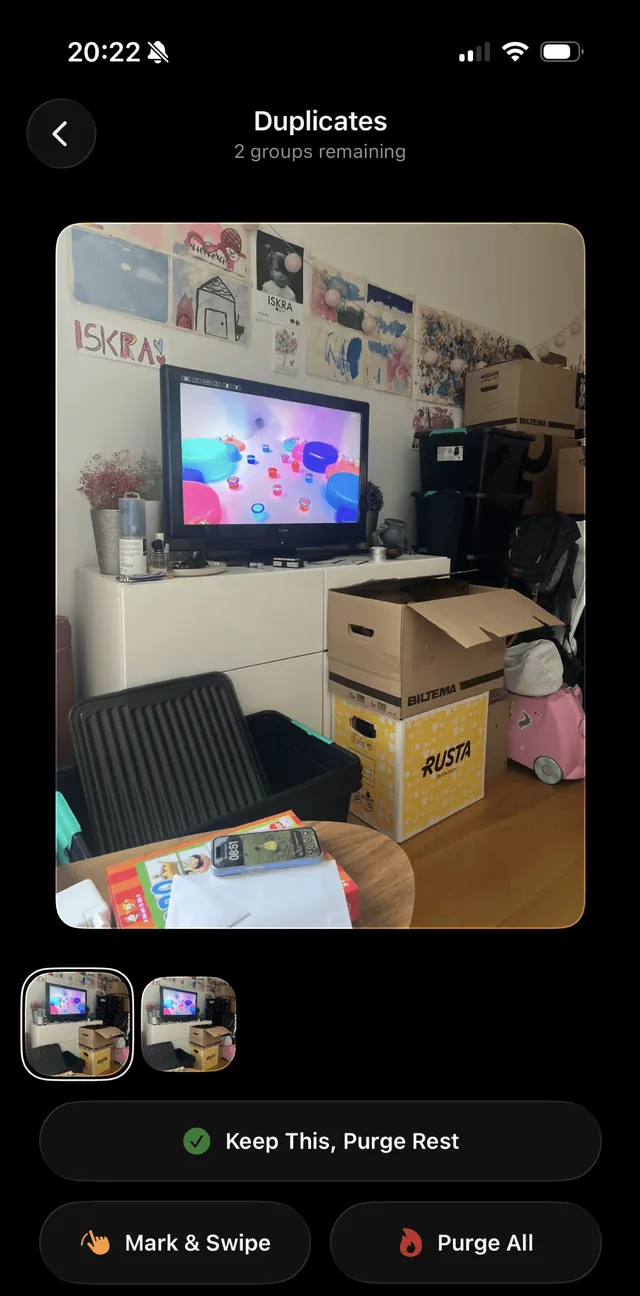
Marked photos don't vanish on swipe. They sit in a review pile until you hold the Purge button, and after that iOS still keeps them in Recently Deleted for 30 days. Scanning happens on the iPhone; nothing is uploaded anywhere.
Before you delete anything
iCloud Photos syncs deletions. If iCloud Photos is on, merging or deleting on your iPhone removes the copies from iCloud and your other devices too. Want them gone from the phone but kept in the cloud? Read how to delete photos from iPhone but not iCloud first.
- Check a set before merging if it holds an edited and an unedited version you care about. Merge picks quality, not your favorite crop.
- Space comes back after Recently Deleted empties. Clear it by hand if you need the room today.
- Duplicates are rarely the main storage hog. Videos and similar shots usually are. Our iPhone storage full checklist shows how to check.

Merge the copies. Swipe the rest.
Marked shows duplicates and similar shots side by side, so you keep the best one and clear the others in seconds.
Download on the App StoreNotes: menu names match iOS 26 and iOS 27 as of November 2026. Apple moves Photos around between releases, so if a label differs on your iPhone, look for the Utilities section. The "tap the shutter five times" habit is autobiographical.