Marked / Guides / Burst photos
How to delete burst photos on iPhone
A burst looks like one photo but stores every frame you fired off. To clean one up, open Photos › Collections › Media Types › Bursts, open a burst and tap the Burst button that shows how many photos it holds. Tick the circle on each frame worth keeping, tap Done, then choose Keep Only Favorites. Your picks become normal photos and the leftovers move to Recently Deleted. If nothing in it is worth saving, delete the burst like a single photo and every frame goes with it.
What a burst is, and why you have so many
Burst mode takes photos in rapid succession for as long as your finger stays down. It exists for things that move: a kid on a trampoline, a dog that refuses to sit, a goal you'd miss with a single tap. Photos then shows the whole run as one thumbnail, which is exactly why bursts are easy to forget. Each frame inside is still a full photo, and each one takes up space.
Plenty of people never take a burst on purpose. The two usual culprits:
- The shutter swipe. On iOS 26 and iOS 27, swiping the shutter button to the left starts a burst that runs until you lift your finger. A thumb that drifts sideways while you frame the shot is enough. (Holding the shutter without swiping records a video instead, which is its own little surprise.)
- The volume button. With Use Volume Up for Burst turned on in Settings › Camera, holding volume up fires a burst. Squeeze the phone the wrong way and you get forty photos of your coat lining.
If you never shoot bursts deliberately, switch that volume setting off. It won't change what the shutter swipe does, but it ends the pocket bursts.
Find every burst on your iPhone
- Open Photos and tap Collections at the bottom.
- Scroll down to Media Types and tap Bursts. On iOS 16 and 17, Media Types lives in the Albums tab.
- Every thumbnail in there is one burst. Open a few to see how many frames they really hold.
Planning to come back over a few evenings? Touch and hold the Bursts collection and tap Pin, so it waits for you at the top of Collections.
Keep the best frame, delete the rest
This is where the space actually comes back. A thirty-frame burst where you like one shot means twenty-nine photos stored for nothing.
- Open the burst from the Bursts collection.
- Tap the Burst button that shows the number of photos. A filmstrip of every frame opens.
- Scroll through it. Gray dots under some frames are the ones Apple suggests keeping.
- Tap the circle in the lower-right corner of each frame you want as its own photo.
- Tap Done, then choose Keep Only [number] Favorites.
Your picks land in the library as ordinary photos, and the unpicked frames move to Recently Deleted. The other choice, Keep Everything, saves your picks as separate photos and keeps the full burst as well, so it frees nothing at all.
Choosing goes faster with a rule. Look for open eyes, the peak of the action and nothing blocking a face, then narrow it to two finalists and pinch to zoom in on both. Most bursts have one obvious winner and a few runners-up that are the same picture with worse timing. Keep the winner. Keep a runner-up only if it shows something the winner doesn't.
Treat the gray dots as a hint, not a verdict. The suggestions favor sharp, well-framed frames. They can't know which one caught your daughter mid-laugh. Scroll the whole strip before you accept them.
If Keep Only Favorites doesn't show up on a burst you've picked from before, untick every frame, tap Done, then open it again and choose your favorites fresh. That usually happens after Keep Everything was chosen once.
Delete whole bursts at once
Some bursts have no good frame at all. Those can go in one move.
- In Collections › Media Types › Bursts, tap Select.
- Tap each burst you want gone, or drag a finger across a row to pick several.
- Tap the trash icon and confirm. Every frame inside each burst goes too.
Deletes sync, and the space comes back late. With iCloud Photos on, a deleted burst vanishes from every device on your Apple Account. All of it waits in Recently Deleted for 30 days, and the storage is only freed once it leaves there.
Similar shots: the bursts you took by hand
Bursts are the tidy version of the problem. The messy version is similar shots: six separate taps at the same sunset, ten selfies a second apart. They aren't bursts, so Media Types won't group them. They aren't copies either, so the Duplicates album leaves them alone.
Bursts
- One thumbnail, many frames inside
- Grouped for you under Media Types
- Apple's picker keeps only favorites
Similar shots
- Separate photos, seconds apart
- Not grouped, not flagged as duplicates
- You compare and delete them yourself
The free way through similar shots is manual. In the Library, pinch to zoom in on a busy day, tap Select, tick the extras and delete them. It works fine for a weekend trip. It gets slow when the extras run into the thousands.
A small habit helps here: when you find the keeper, tap the heart to make it a favorite before you delete its neighbors. If you get interrupted halfway through a day, the favorites tell you where you were and which shots already survived the cut.
Live Photos: the extra clip behind each shot
The other quiet multiplier is Live Photos. A Live Photo records what happens just before and after you press the shutter, sound included, and it's on by default. That moving part is stored with the photo. If you never watch it:
- Turn it off for new photos. In the Camera's Photo mode, tap or swipe up from the mode name at the bottom, tap Live and step through to Live Off. Leave Live Photo on under Settings › Camera › Preserve Settings (it is by default) so the choice sticks.
- Find the existing ones under Collections › Media Types › Live Photos.
- Switching Live off in Edit is a look, not a cleanup. Photos edits can be reverted, which means the original stays in your library. Deleting the shots you don't need is what saves space.
Bursts and Live Photos are rarely the only thing filling a phone. Our iPhone storage full checklist shows how to see what's really taking the room.
Where Marked fits
For true bursts, Apple's picker is the right tool, and it's free. The pile I built Marked for is the similar shots. It groups photos taken seconds apart and lays them out side by side. You tap the one you like, then Keep This, Purge Rest. If you'd rather judge each frame alone, the same group also plays as a swipe deck, where up marks a photo and down keeps it.
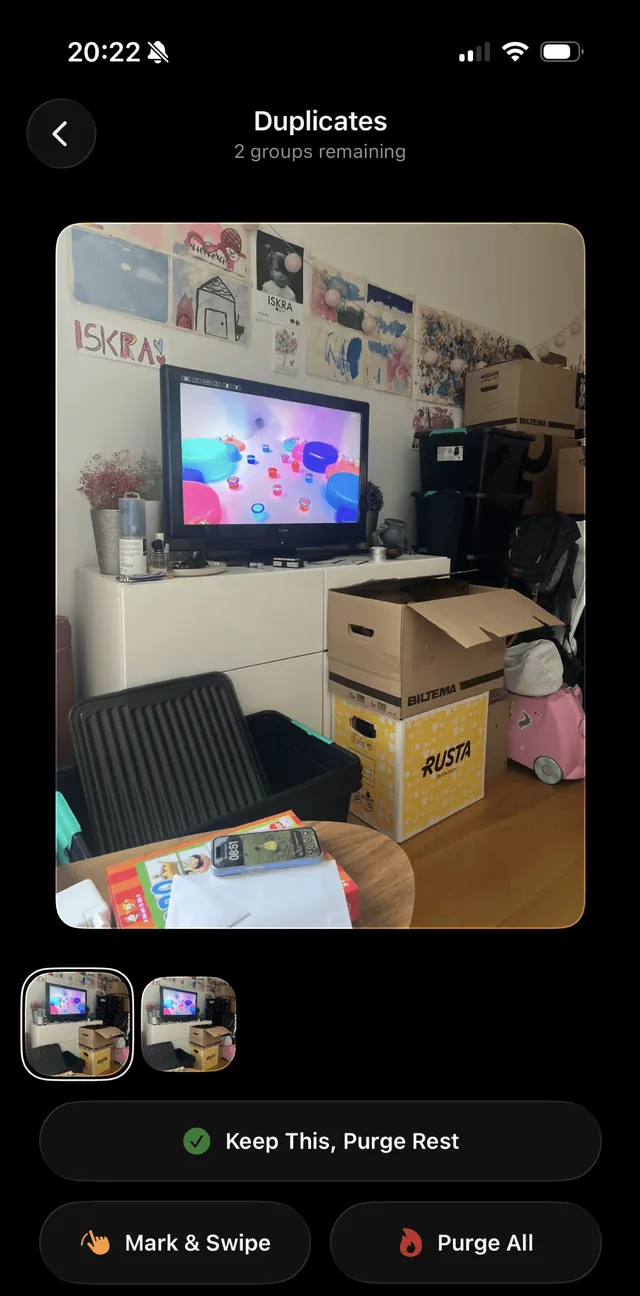
Marking isn't deleting. Marked photos wait in a review pile until you hold the Purge button, and iOS keeps them in Recently Deleted for 30 days after that. Scanning, swiping and marking cost nothing; purging is the paid part.

Keep the good frame. Clear the other twenty.
Marked groups similar shots side by side, so picking the keeper and clearing the rest takes a couple of taps.
Download on the App StoreNotes: steps match the Photos and Camera apps in iOS 26 and iOS 27 as of November 2026. The burst picker's buttons have been renamed between iOS versions, so if yours says Select instead of Burst, it's the same door. Bursts of the inside of a pocket are more common than anyone admits.