Marked / Guides / iPhone storage full
iPhone storage full: what to do (including System Data)
Before deleting anything, open Settings › General › iPhone Storage and let the bar finish loading, because it shows exactly what is big. On most iPhones Photos is the widest block, and the videos inside it outweigh everything else. Then clear space in this order: empty Recently Deleted, remove a few long videos, offload apps you never open, trim chat attachments, and finish with screenshots and duplicates. System Data is caches and logs that iOS manages itself, so it is rarely the thing to chase.
iPhone, 128 GB119 GB used
- Photos 58 GB
- Apps 21 GB
- System Data 13 GB
- Messages 11 GB
- iOS 11 GB
- Media 5 GB
Read the storage bar before you delete anything
The storage screen is the one place where your iPhone tells you the truth about itself. Most people skip it and start deleting apps at random, which is like cleaning a flat by throwing out spoons.
- Open Settings › General › iPhone Storage.
- Give it a moment. On a nearly full phone the bar and the numbers shift for a while before they settle.
- Look at the widest colored block. That category is where your effort pays off.
- Scroll the list below it. Apps are sorted by size, biggest at the top.
- Tap an app to see the app itself versus its Documents & Data. The second number is the one that grows over time.
- Check the recommendations near the top. Show All lists them; some have an Enable button, others open a list you can review.
The goal is to aim at gigabytes, not at clutter that only looks big. Forty old apps at 80 MB each come to about 3 GB. A single long 4K video of a school play can beat that on its own.
Find what is actually big
For most people the answer is Photos, and within Photos it is video. A photo is a few megabytes, while a minute of 4K video weighs about as much as dozens of photos. Your own numbers are printed under Settings › Apps › Camera › Record Video, where iOS shows roughly how big a minute of video is at each quality.
- Videos: in Photos, open Collections › Media Types › Videos. Long clips and screen recordings are the usual heavyweights. On iOS 16 and 17, Media Types sat under the Albums tab instead.
- Messages: years of group chat photos add up quietly. Tap Messages in the iPhone Storage list to see the attachments broken down by type.
- Apps with big Documents & Data: streaming apps with offline downloads, chat apps, podcast apps and games with large add-ons.
If apps and downloads are your problem rather than photos, the guide on how to free up space without deleting photos walks through each one.
What System Data really is
System Data is the grey block that sends people to forums at midnight. If you tap it, iOS describes it as caches, logs and other resources currently in use by the system, and warns that the value fluctuates. In plain terms: temporary files, streaming caches, logs, and assets iOS keeps around, like voices and fonts.
A few things genuinely help:
- Make room elsewhere first. Apple says the iPhone removes temporary files and things it can download again when storage runs low. A phone at 99 percent has no room for its own housekeeping, so clearing a few gigabytes of photos or apps often lets System Data shrink over the following day.
- Restart the phone. It clears some temporary files. Cheap to try, no miracles promised.
- Clear Safari's website data if you browse a lot: Settings › Apps › Safari › Clear History and Website Data. Expect to be logged out of websites.
- Back up, erase and restore as a last resort. People do report large drops, but it costs an evening and the number can creep back.
And one myth to drop: no App Store app can clean System Data. iOS keeps every app sealed off from system files and from other apps' caches. An app that promises to clear it is either cleaning your photos and contacts under a different name, or doing nothing at all.
Tip: if System Data is a smaller block than Photos, leave it alone for now. Fix the big block first and check System Data again tomorrow.
The triage order: fastest win first
- Empty Recently Deleted. In Photos, go to Collections › Utilities › Recently Deleted, confirm with Face ID or your passcode, tap Select, choose the items and delete them. This step cannot be undone, so glance through first.
- Delete a few long videos. Open Collections › Media Types › Videos and check the durations on the thumbnails. Old screen recordings and accidental pocket videos go first.
- Offload apps you never use. Tap an app in iPhone Storage and choose Offload App. The app goes, its documents and data stay, and the icon remains with a little cloud so you can reinstall it.
- Trim chat attachments. In Messages, open a busy conversation, tap its name at the top, open Photos and delete in bulk. Deleted messages sit in Messages' own Recently Deleted for up to 30 days, so empty that too.
- Work through screenshots and duplicates. Screenshots pile up faster than anyone admits, and there is a way to delete all your screenshots at once. Exact copies are handled for free by the Photos app, see how to delete duplicate photos on iPhone.
When the photo library is the problem (it usually is)
If Photos is still the widest block after all that, there are two honest options. You can move the library off the phone with iCloud Photos and Optimize iPhone Storage, which keeps smaller versions on the iPhone and the originals in iCloud. That needs an iCloud plan big enough for the whole library, and the free tier is 5 GB.
Or you can make the library smaller, which means deleting. With thousands of photos that takes a method rather than willpower: small batches, a clear rule for what stays, and a pass you can stop and resume. Cleaning up a camera roll with thousands of photos lays out that method.
Mistakes that make it worse
Deleting on the iPhone deletes from iCloud. With iCloud Photos on, a photo you delete on the phone disappears from iCloud and from your other devices too. It stays recoverable in Recently Deleted for 30 days, then it is gone. Deleting to make room only works if you really do not want the photo anymore.
- Waiting for zero bytes. iOS updates need free space to install, and a phone that is completely full gets sluggish. Start clearing at the first warning.
- Forgetting the second trash can. Photos and Messages each have a Recently Deleted. Space only comes back when they are emptied or the 30 days run out.
- Trusting a "phone cleaner" with System Data. See above. It cannot reach it.
Where Marked fits
I built Marked for the slow last step, the one that needs your eyes. It sorts the library into piles (Marked, This Week, Screenshots, Duplicates, Similar, Videos) and splits everything else into weeks and months with a progress bar, so a giant library turns into short sessions. You swipe up to mark a photo and down to keep it.
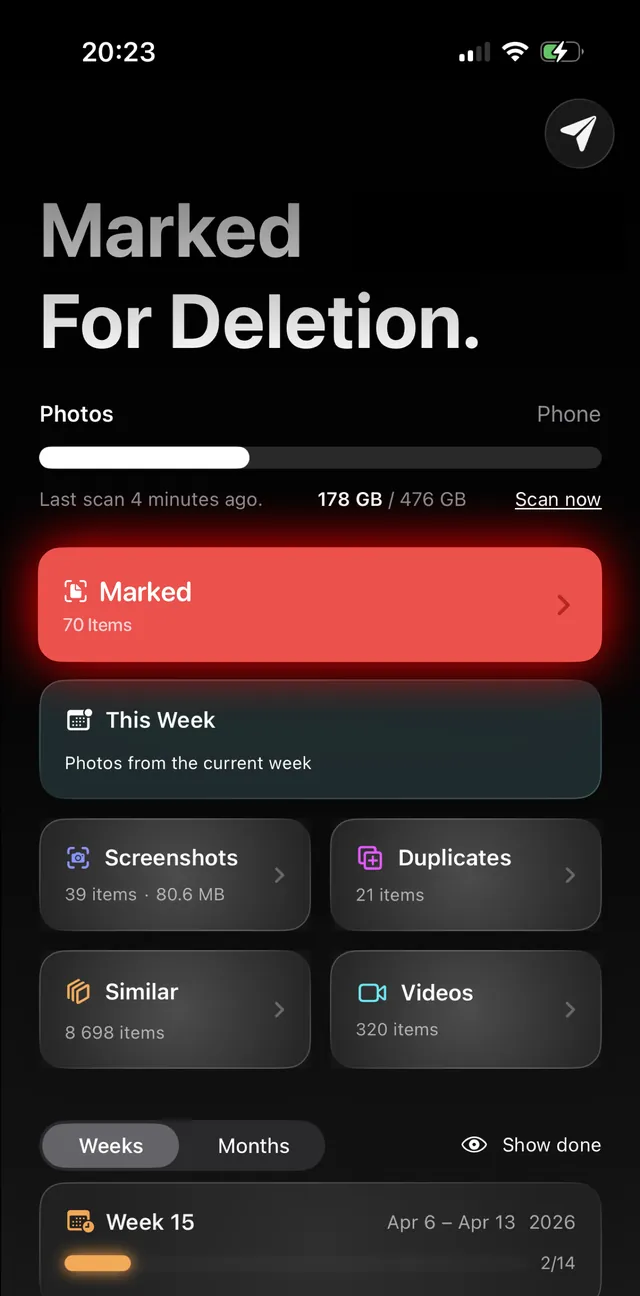
Swiping only marks. The photos wait in a review pile where you can rescue any of them, and they leave only when you hold the Purge button. After each purge Marked shows how much space came back, which is a pleasant number to see on a phone that was at 98 percent. Scanning and swiping are free, purging is a paid feature, and the photos are scanned on the iPhone without being uploaded.

Found the big block? Shrink it.
Marked turns a full photo library into small piles you can swipe through, then shows the gigabytes you got back.
Download on the App StoreNotes: menu names and the System Data description match iOS 26 and iOS 27 as of November 2026, and the cleanup behavior comes from Apple's own storage documentation. The storage bar above is an example, not a real phone. If you are reading this on a phone with 200 MB left, step one of the triage takes about two minutes.