How to delete all screenshots on iPhone at once
Every screenshot you take already lands in its own album. Open Photos, tap Collections, scroll to Media Types and open Screenshots. Tap Select, slide your finger along the first row and then straight down to grab whole rows at a time, and tap the Trash button. The lot moves to Recently Deleted for 30 days, so empty that as well if you need the space today. On a Mac with iCloud Photos, the same album plus Command-A does it in seconds.
Delete all screenshots in the Photos app
There's no need to scroll through your whole library hunting for them. Photos files screenshots separately the moment you take them, and that album is the quickest free way to clear the pile.
- Open Photos and tap Collections at the bottom.
- Scroll down to Media Types and tap Screenshots. On iOS 16 or 17 you'll find Media Types in the Albums tab.
- Tap Select at the top of the screen.
- Press on the first screenshot and, without lifting, slide sideways across the row and then down. Every row you pass gets selected, and the grid keeps scrolling while your finger rests near the bottom edge.
- Tap the Trash button and confirm.
If a Select All button shows up once you're in select mode, use it and skip the sliding. Not every view offers one, so the slide is worth knowing anyway. To keep a single screenshot out of the batch, tap it once to unselect it before you delete.
One catch: the album only holds images your iPhone recognises as screenshots. A screenshot somebody sent you often arrives as an ordinary picture, especially through chat apps that recompress images, so it lives in your main library and survives the clean-up.
Deleted screenshots aren't gone yet, either. They wait in Recently Deleted for 30 days and keep using storage until then. To get the room back now, clear that album too; the Recently Deleted guide shows where it is and how to empty it.
Faster on a Mac, if you use iCloud Photos
With iCloud Photos turned on, your Mac shows the same library as your iPhone, and a keyboard shortcut beats any amount of thumb work.
- Open Photos on the Mac and let it finish syncing.
- In the sidebar, find Media Types and click Screenshots. If the section is collapsed, hover over its name and expand it.
- Press Command-A to select every screenshot.
- Press Delete, then confirm.
In a normal album the Delete key only takes a photo out of that album. Screenshots is a smart album, though, and Apple's documentation says deleting from a smart album removes the photos from the library itself. Once the change syncs, the screenshots show up in Recently Deleted on your iPhone as well.
That's the other side of iCloud Photos: a deletion on one device is a deletion on all of them. If you were hoping to clear the phone and keep a copy in the cloud, read how deleting from the iPhone but not iCloud really works before you start.
The Shortcuts route
If you'd rather have a button to press once a month, the Shortcuts app can find the screenshots for you. It can also limit the clean-up by date, which the album can't.
Two honest limits. It relies on the same screenshot detection as the album, so the ones friends sent you slip through here too. And on a big library the search step can take a while, so run it when you're not in a hurry. Whatever it deletes goes to Recently Deleted like any other deletion.
Screen recordings are a separate album
Screen recordings never appear in Screenshots. They have an album of their own, Screen Recordings, right next to it under Media Types.
Check it before you celebrate. Screen recordings are videos, so one long recording can take more room than a big stack of screenshots. Each thumbnail shows the running time, which is a fair hint at the size, so start with the longest. The same Select and slide works here. If storage is the real reason you're cleaning, the iPhone storage full checklist shows what is actually using the space.
Skim for the ones that matter
A screenshot can be the only copy of something. Boarding passes, event tickets, a receipt you need for a warranty claim, a backup code for two-factor sign-in, a Wi-Fi password, an address someone texted once. Before you delete the lot, scroll through the album at full speed. Ten seconds is enough to spot a QR code or a wall of numbers.
Anything worth keeping, tap to unselect before you delete. Passwords and recovery codes are safer in the Passwords app or your password manager than in a photo library, so move them there and let the screenshot go.
Stop the pile from growing back
Most screenshots get used once: you take it, send it, and never open it again. iOS 26 and later let you skip saving those. When the preview opens after a screenshot, tap the checkmark (Done on older versions) and choose Copy and Delete if you only need to paste it somewhere, or Delete Screenshot if it was a mistake.
If the full-screen preview gets in your way, Settings › General › Screen Capture has a Full-Screen Previews switch that brings back the small thumbnail in the corner. Tap the thumbnail and the same choices are there. After that, one quick pass through the album each month keeps it small enough to clear in a couple of minutes.
Where Marked fits
Wiping the whole album is great when every screenshot can go. It gets fiddly when the album is a mix: memes you like, receipts you need, and endless shots of a map you used once. Picking through that in select mode is a lot of careful tapping, and it's the kind of sorting I built Marked for.
Marked keeps your screenshots in their own pile on the home screen, and you go through them like a deck of cards: swipe up to mark one for deletion, swipe down to keep it. The ten second skim from above becomes the whole job.
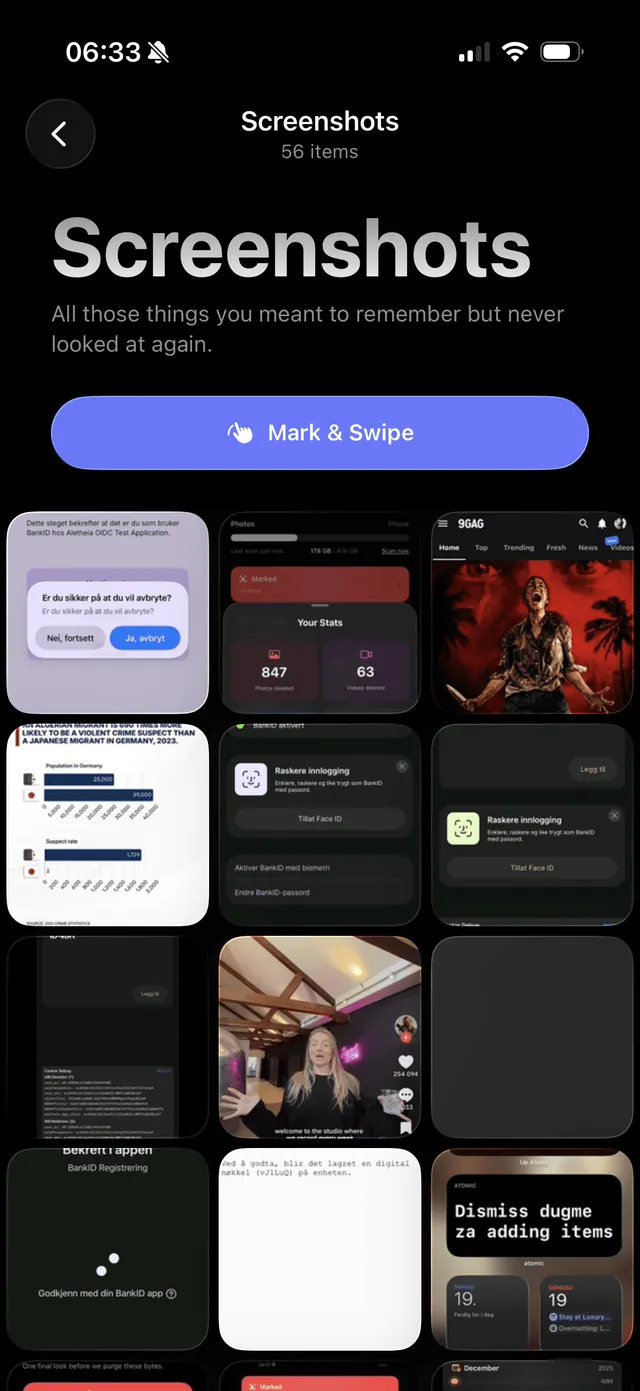
Marking doesn't delete anything. Marked screenshots sit in a review pile where you can rescue any of them, and only holding the Purge button sends them off, into the same 30 days of Recently Deleted as usual. Scanning, swiping and marking are free; purging is the paid part. Photos are scanned on the iPhone and never uploaded.

Clear the junk. Keep the receipts.
Marked puts every screenshot in one swipeable pile, so you keep the useful few and clear the rest in minutes.
Download on the App StoreNotes: steps checked against iOS 26 and iOS 27 and Apple's Photos and Shortcuts documentation in November 2026. Button names drift between releases, so if one reads slightly differently on your iPhone, look for it in the same spot. If your Screenshots album is mostly memes, you're in good company.