Marked / Guides / Free up space without deleting photos
How to free up space on iPhone without deleting photos
You can keep every photo and still get space back. Turn on Optimize iPhone Storage in Settings › [your name] › iCloud › Photos (on iOS 27, inside iPhone Storage on that screen), which keeps the originals in iCloud, as long as your iCloud plan can hold the whole library. Then switch on Offload Unused Apps in Settings › Apps › App Store, cut down Messages attachments, and remove the podcasts, music and videos you downloaded and already finished. If Photos is still the biggest block after that, delete the junk, like screenshots and duplicates, and leave the memories alone.
First, see where the space went
Open Settings › General › iPhone Storage and look at the colored bar. It decides which of the tricks below are worth your time. If Photos is half the phone, Optimize iPhone Storage is the big lever. If apps and Messages dominate, you may not need to touch the library at all. The iPhone storage full checklist explains how to read that screen, System Data included.
Optimize iPhone Storage, and the catch
This is the closest thing to free space without loss. With iCloud Photos on and Optimize iPhone Storage chosen, iCloud keeps every photo and video at full resolution, and the iPhone keeps lighter versions. Apple turns it on by default and says the phone swaps in the lighter versions when it needs room, starting with the photos you look at least.
- Open Settings › [your name] › iCloud › Photos.
- Turn on Sync this iPhone if it is off. A large library takes a while to upload, so leave the phone on Wi-Fi and a charger overnight.
- On iOS 27, tap iPhone Storage first. Then tap Optimize iPhone Storage. The other option, Download and Keep Originals, is the one that fills the phone.
To check that the upload is actually moving, open Photos, tap Collections and look at your account icon in the top-right corner. A partly filled blue circle around it means photos are uploading. A red exclamation mark means iCloud is full, and nothing more will be optimized until that is fixed.
Optimize iPhone Storage
- Lighter versions on the iPhone
- Full-size originals wait in iCloud
- Space comes back as the phone needs it
Download and Keep Originals
- Every original stays on the iPhone
- Full quality even with no signal
- Uses the most iPhone storage
Now the honest part, because this setting has real trade-offs:
- It needs iCloud space for the whole library. The free plan is 5 GB, which most photo libraries passed years ago. If iCloud fills up, uploads stop, and photos that never reached iCloud cannot be optimized.
- Originals download on demand. Opening an old video, editing a photo or sharing it at full size pulls the original from iCloud. On a train with no signal you get the lighter version or a spinner.
- It is gradual. The space does not appear the second you tap it. iOS trades originals for lighter copies over time as storage gets tight.
- Deleting still syncs. With iCloud Photos on, removing a photo from the iPhone removes it everywhere. If you want something off the phone but safe in the cloud, read how to delete photos from iPhone but not iCloud first.
Offload the apps you never open
Offloading removes an app but leaves its documents and data behind. The icon stays on the Home Screen with a small cloud, and one tap reinstalls it with everything where you left it, as long as the app is still on the App Store.
- Automatic: Settings › Apps › App Store, then turn on Offload Unused Apps. iOS offloads apps you have not used when storage runs low.
- One at a time: in Settings › General › iPhone Storage, tap an app and choose Offload App.
One limit worth knowing: offloading frees the size of the app, not its data. An app that is small itself but holds, say, several gigabytes of offline downloads will barely shrink. For those, clear the downloads inside the app instead.
And for a game you finished three years ago, offloading is too polite. Its leftover data stays on the phone until you delete the app, so deleting it outright is the tidier choice, unless the save file matters to you.
Messages: old threads and big attachments
By default Messages keeps everything forever, including every video your aunt ever forwarded. There are two ways to shrink it.
- Delete attachments by hand. Open a busy conversation, tap the name or group icon at the top, tap a category such as Photos, then Edit and Select to delete in bulk. Settings › General › iPhone Storage › Messages shows which kinds of attachments weigh the most.
- Set a retention period. Go to Settings › Apps › Messages › Keep Messages and pick 1 Year or 30 Days. Older conversations, attachments included, are then removed automatically on an ongoing basis.
This is where "without deleting photos" can go wrong. A picture that only lives inside a chat disappears with it. Save the ones you care about to Photos before you shorten Keep Messages. With Messages in iCloud on, the deletion also reaches your other devices. Deleted messages wait in Messages' own Recently Deleted for up to 30 days before the space is truly free.
Downloads you have already finished
Anything you can download again is safe to remove. Usual suspects:
- Podcasts: in the Podcasts app, open Library › Downloaded, tap the more button and choose Remove All Downloads.
- Music: Settings › Apps › Music › Downloaded Music lists downloads by artist; tap Edit to remove them. Optimize Storage on the same Music settings page drops songs you have not played in a while once space runs low.
- Films and series: the TV app, Netflix, YouTube and the rest each keep offline downloads inside their own Downloads section. Watched episodes are dead weight.
- Files: the Downloads folder in the Files app collects PDFs and installers you looked at once.
- Caches: some apps have a clear cache button in their own settings. Safari's lives at Settings › Apps › Safari › Clear History and Website Data, and it will log you out of sites.
When the photo library really is the problem
Sometimes all of the above wins back a gigabyte or two and Photos still fills half the phone. Maybe you do not want another iCloud subscription, which is fair. At that point something in the library has to go, but it does not have to be the memories.
Most libraries carry a thick layer of noise around the good stuff: screenshots of receipts and boarding passes, exact copies saved twice, and five near-identical frames of the same sunset. Start with deleting your screenshots in one go, then let the Photos app merge exact copies for free, as covered in how to delete duplicate photos. The birthday photos stay. The photo of a parking ticket from 2023 does not.
Where Marked fits
I built Marked for that noise layer. Screenshots get their own pile, duplicates sit side by side with a Keep This, Purge Rest button, and photos taken seconds apart are grouped as similar shots. You swipe up on what should go and down on what stays.
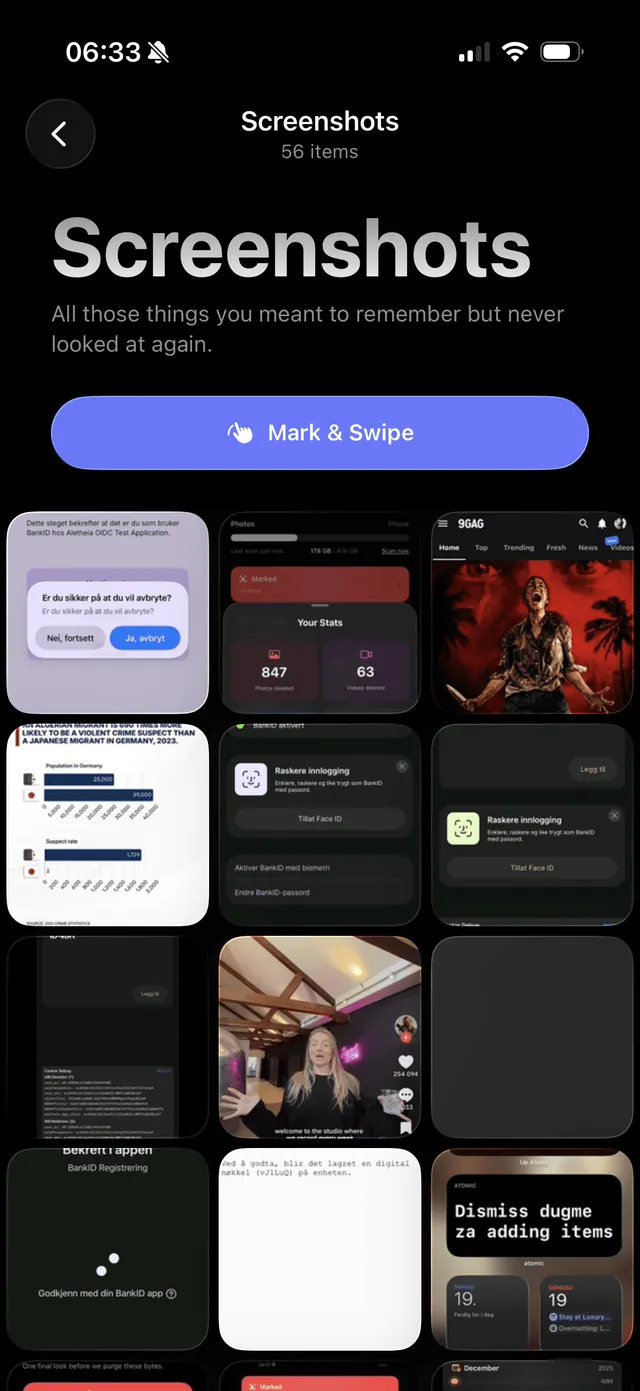
A swipe is not a delete. Marked collects what you marked in a review pile, you can pull anything back out, and the photos only go when you hold Purge. Even then iOS keeps them in Recently Deleted for 30 days. Scanning happens on the iPhone and nothing is uploaded. Swiping and marking cost nothing; purging is paid.

Keep the memories. Clear the noise.
Marked puts screenshots, duplicates and similar shots in their own piles so the clutter goes and the good photos stay.
Download on the App StoreNotes: settings paths and the Optimize iPhone Storage behavior follow Apple's iPhone User Guide and support pages for iOS 26 and iOS 27, checked in November 2026. App download menus change more often than Apple's do, so look for a Downloads section if a label has moved. The aunt with the forwarded videos is a composite, but you know one.