Marked / Guides / Stop WhatsApp saving photos
How to stop WhatsApp saving photos to your iPhone camera roll
In WhatsApp, open Settings (on newer versions it is the You tab with your profile photo), tap Chats and switch off Save to Photos. If one chat keeps saving anyway, open it, tap its name at the top, tap Save to Photos and choose Never or Default. The change only applies to new media, so the pictures already saved stay in your library, usually in an album called WhatsApp. WhatsApp also keeps its own copy of everything, which you clear under Storage and Data › Manage Storage.
Turn off Save to Photos for every chat
WhatsApp on iPhone ships with this switch on, which is how a single busy group can add hundreds of pictures a month to your library without you saving one of them.
- Open WhatsApp and tap Settings in the tab bar. WhatsApp began replacing that tab with a You tab on iPhone in 2026, so you may see your profile photo there instead. Same menu behind it.
- Tap Chats.
- Turn off Save to Photos. Older versions and older guides call it Save to Camera Roll.
Photos and videos still arrive in the chat and you can view them there. They just stop being copied into the Photos app. When something is worth keeping, open it in the chat and save it yourself.
This matters twice if iCloud Photos is on. Every saved meme also uploads to iCloud and counts against your plan, so one forwarded picture of a dog in sunglasses ends up costing space in two places.
Where a WhatsApp photo actually goes
Fix the chats that keep saving anyway
The main switch is only a default. Every chat and group can override it, and a chat set to Always ignores the main switch completely. The usual suspect is a family group you set to Always years ago and forgot.
- Open the chat or group.
- Tap its name at the top to open the info screen.
- Tap Save to Photos.
- Pick Default to follow the main switch, or Never to block this chat for good. Always is the one that causes the trouble.
WhatsApp does not show a list of which chats are set to Always, so check the busiest groups first, the ones that send the most pictures. If new photos still appear in your library after that, look at where they came from and fix that chat next.
Chats with disappearing messages turned on are already covered: WhatsApp does not save their media to Photos automatically.
Stop the downloads too (optional)
Save to Photos controls the copy in your library, not the download. WhatsApp still pulls every photo and video into its own storage. If you are short on space or on a small data plan, open Settings › Storage and Data › Media Auto-Download inside WhatsApp and set Photos, Audio, Video and Documents to Never or Wi-Fi. Media then shows up as a preview you tap to download, which is a nice filter: if you never tap it, you never wanted it.
Clear the WhatsApp photos already in your library
Nothing you change in WhatsApp reaches back in time. Whatever it saved before is still in the Photos app, and finding it is the slow part.
- In Photos, tap Collections › Albums and look for an album called WhatsApp. WhatsApp normally files what it saves there. On iOS 16 and 17, albums lived under the Albums tab.
- Open it and tap Select. Scroll and pick what should go, and watch for the real keepers, like the baby photos in the family group.
- Delete them with the trash button. If iOS offers Remove from Album, that is not the one: it only takes photos out of the album, and they keep using space in your library.
- Once you are sure, empty Recently Deleted to get the space back now. The guide to Recently Deleted on iPhone covers recovery if you overdo it.
No WhatsApp album? Try the Recently Saved collection in Collections, which gathers photos saved from other apps, or sort the library by Recently Added. Dates help as well: WhatsApp strips most of the original photo details, so a saved picture usually carries the day it arrived rather than the day it was taken. The week of a group trip is a good place to start.
A rough rule for the pile: photos of people you know usually stay, and so does anything you might need as proof later, like a picture of a contract or of where you parked. Good-morning images, forwarded videos, memes you have already laughed at and screenshots of other people's screenshots can go without a second look.
iCloud Photos deletes everywhere. If iCloud Photos is on, deleting these pictures on your iPhone also removes them from iCloud and your other devices. Make sure the ones you care about are not mixed in before you select a few hundred at once.
Forwarded memes often land in your library more than once, from two different groups. The Photos app can merge exact copies for free; see how to delete duplicate photos on iPhone.
Clean up WhatsApp's own storage
Deleting from Photos does not touch the copy inside the chat, and that copy can be large. To clear it:
- In WhatsApp, open Settings › Storage and Data › Manage Storage.
- Start with the large files group (files over 5 MB) and the forwarded-many-times group, which is mostly memes.
- Below that, chats are listed by how much space they use. Open the heaviest one, tap Select and delete in bulk.
This deletes the files from your phone only; everyone else in the chat keeps theirs. When a bulk selection includes starred items, WhatsApp offers to keep them, so star anything important first. You can check the result under Settings › General › iPhone Storage › WhatsApp on the iPhone itself.
Do not worry if the two totals disagree. WhatsApp measures its storage differently from iOS, so the numbers rarely match exactly. What counts is that both go down. Offloading WhatsApp would not help here anyway, since offloading keeps an app's data, and the data is the whole problem.
Where Marked fits
To be straight about it, Marked has no WhatsApp filter. It does not sort photos by the app they came from. Where it helps is the cleanup pass: forwarded pictures saved twice turn up in its Duplicates pile, and the library is split into weeks and months, so you can open the month of that group trip and swipe. Up marks a photo, down keeps it.
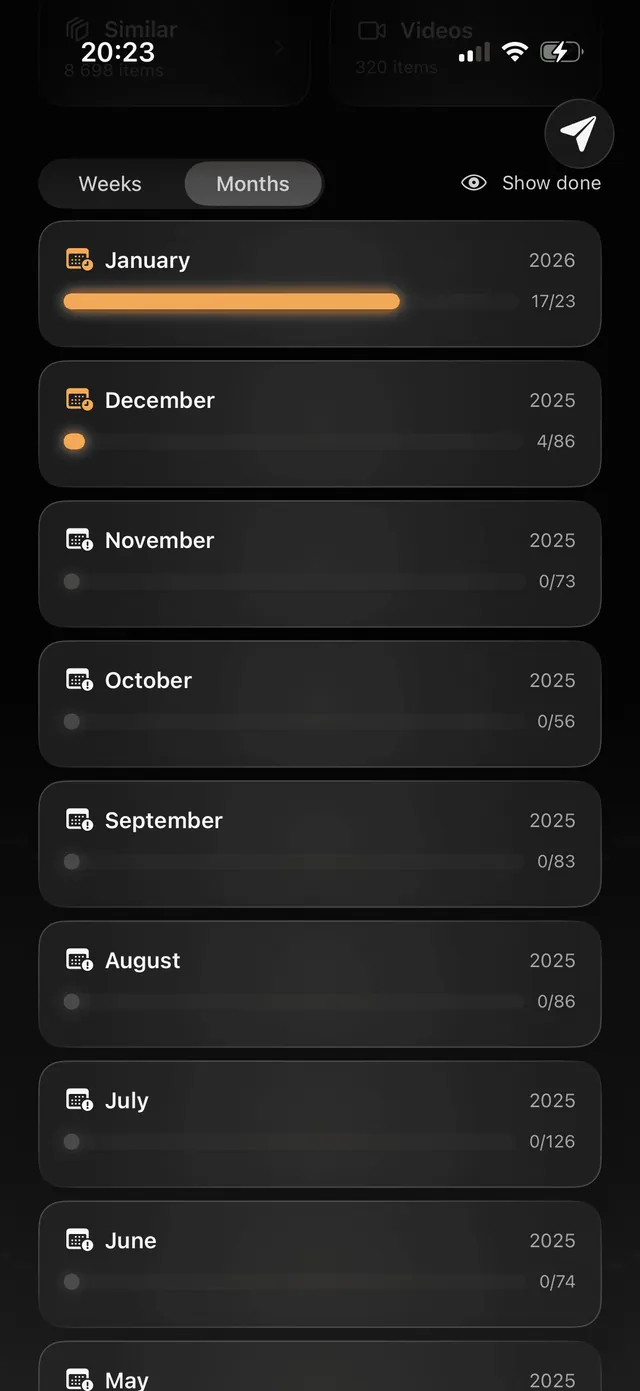
Marked photos wait in a review pile instead of disappearing, and leave only when you hold Purge. The scanning runs on your iPhone and your photos are never uploaded. Reviewing is free, and purging is the paid part.
If WhatsApp was only one of several sources of clutter, the guide to cleaning up a camera roll with thousands of photos has a method for the rest.

Switch it off. Then swipe out the backlog.
Marked splits your library into months, so years of saved WhatsApp pictures become a few short swiping sessions.
Download on the App StoreNotes: WhatsApp labels are taken from WhatsApp's help center and recent coverage of the iPhone app as of November 2026; WhatsApp renames things more often than Apple does, so look for the Chats and Storage and Data sections if a label has moved. Photos paths match iOS 26 and iOS 27. Sorry to whoever sent the dog in sunglasses; it was a good picture, once.